Print your photos with the date on them
PrintWithDate is a free Windows app that reads the date each photo was taken, puts it on the photo, and prints it. It decides where the date goes and what color it should be, and prints all your chosen photos with the same print settings in one go.
Why I made it
To keep the ‘when’ with our family photos
When you look at a printed family photo, you can usually tell where it was taken, but when it was taken fades quickly. With the date on it, you remember that day much more clearly.
But I couldn’t find a good program that prints photos with the date on them. Typing the date on each photo and setting the printer back to high quality every time I printed was a hassle, so I made one myself.
Shym, the maker
Features
Just pick your photos. The dates go on by themselves.
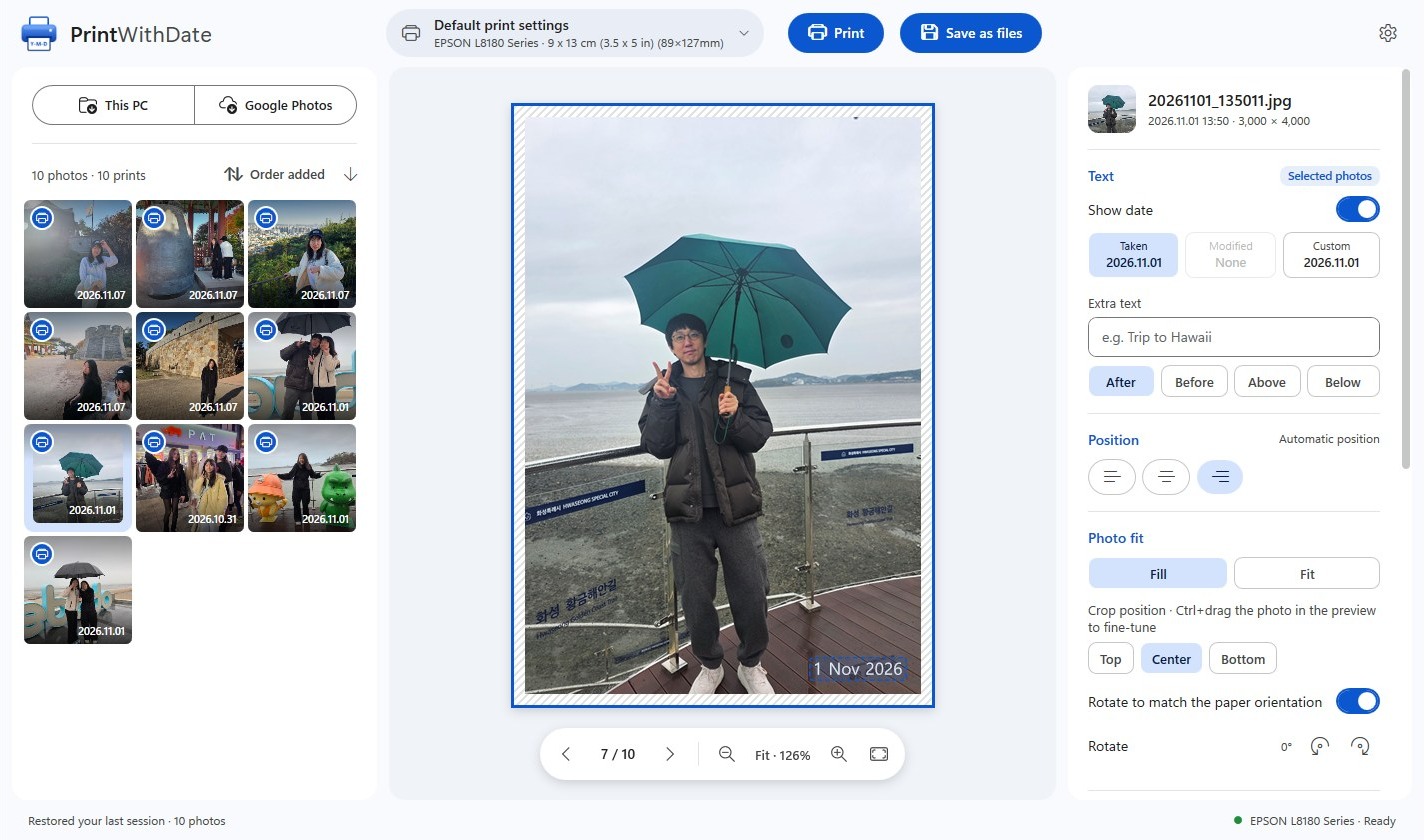
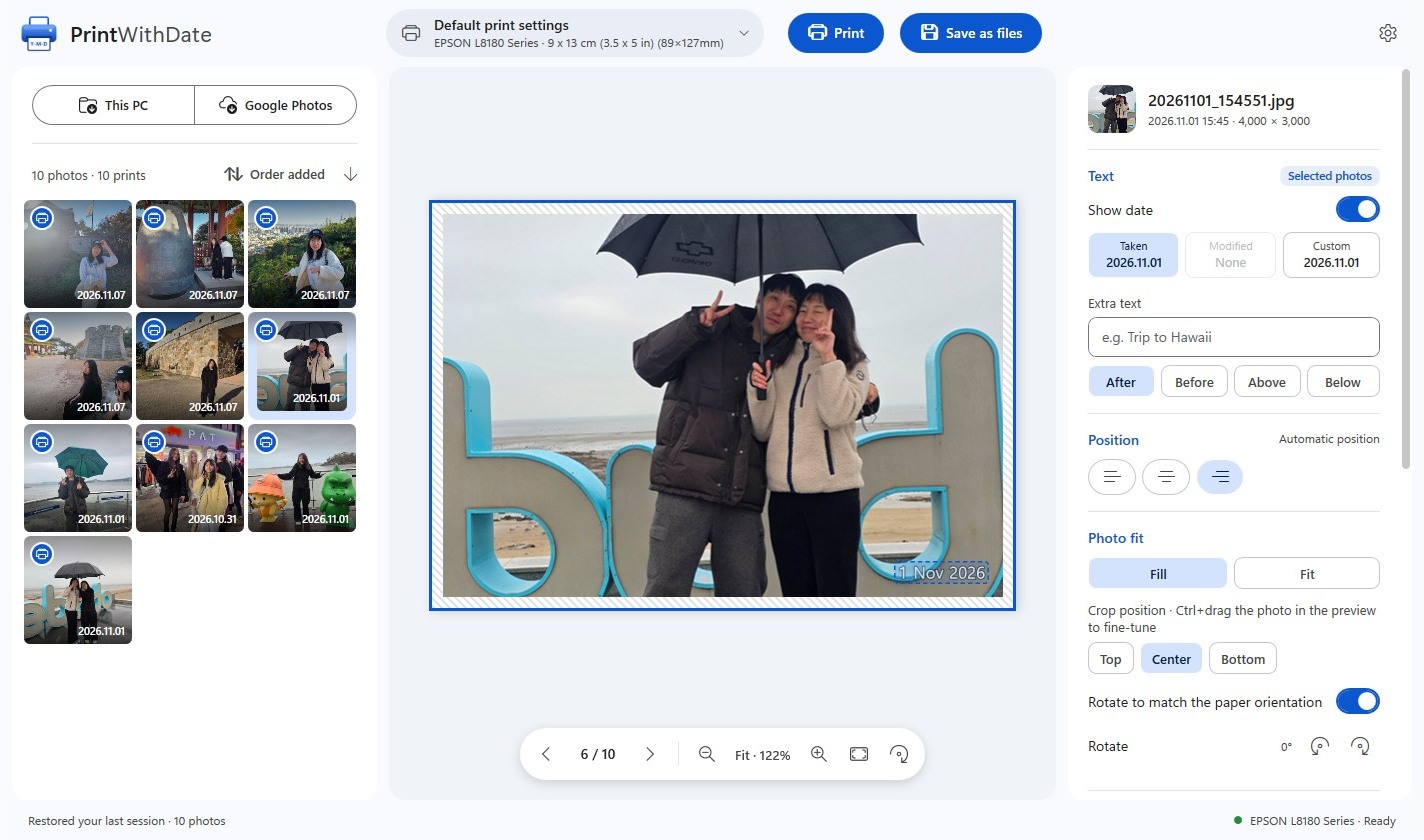
Add dates, fine-tune them, and print, all from one screen.
Automatic date placement
The date, where it’s easiest to see
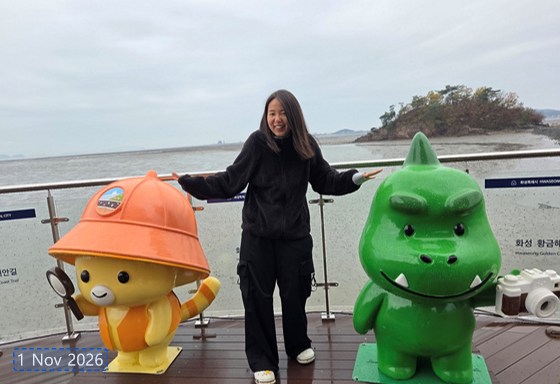
It reads the date stored in each photo and adds it automatically. For portrait and landscape photos alike, it looks at the picture and picks a spot and a color where the date stands out clearly.
- Chooses left, center, or right based on the background
- White or black text and outline to match the brightness
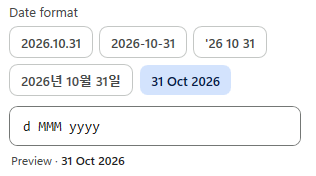
- Change the date format once and it applies to every photo
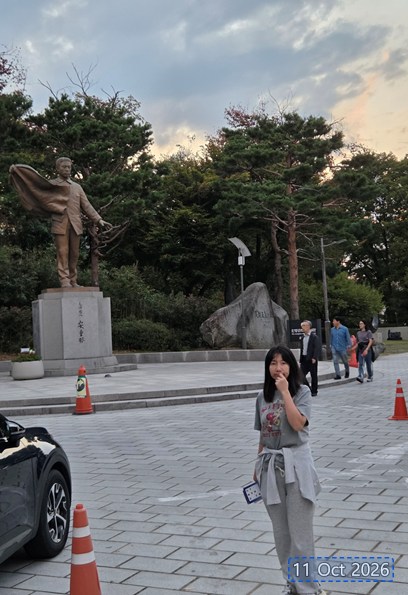
- Warns you about photos that already have a date, so it isn’t printed twice
Print in one go
Set up printing once, and every photo comes out the same
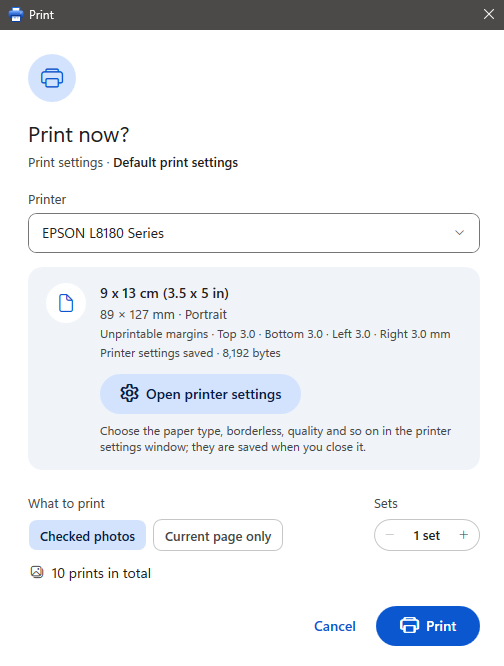
Your print settings keep the printer, paper, and margins, along with the paper type, borderless option, and quality from the printer’s own settings window. There’s no need to switch back to high quality every time. All your chosen photos print with the same settings in one go.
- Turn off only the photos you want to skip, and print the rest with one click
- Check paper, range, and number of sets at a glance before printing
- No printer? Save the dated photos as JPG files
PC photos + Google Photos
Print phone photos straight from Google Photos
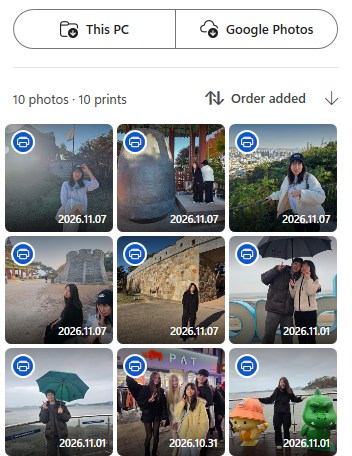
Drag photos from your PC onto the window. Photos you took on your phone and backed up to Google Photos go straight into the list, without downloading and moving them first. You can mix photos from both and print them together.
- Only brings in the photos you pick in your browser
- Keeps the date recorded in Google Photos
- Disconnect anytime in Settings
See the Privacy Policy for the information it handles.
And more
Everything you need is here
- Preview that matches the printShows the paper, margins, and even the cropped edges exactly as they’ll print.
- Adjust each photoFix a date by hand or add a short note like "Beach trip".
- Save as filesNo printer? Save as JPG and take the files to a photo shop.
- Multiple print settingsSave settings for 4×6 photo paper, frames, and more, and pick the one you need.
Download
Installer
The version you install. It installs without administrator rights and updates automatically when a new version comes out.
Setup.exePortable
Runs straight from the folder you unzip it to, with no installation. Handy on a USB drive or a work PC where installing is difficult.
Portable.zipWhen you first open the downloaded file, a "Windows protected your PC" window may appear. It shows up because this is a new app made by an individual, and Windows doesn’t know it well yet. Continue as shown below.
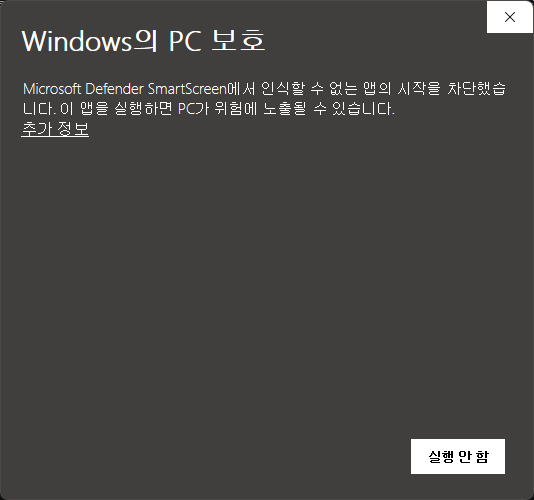
1. Click More info in the window.
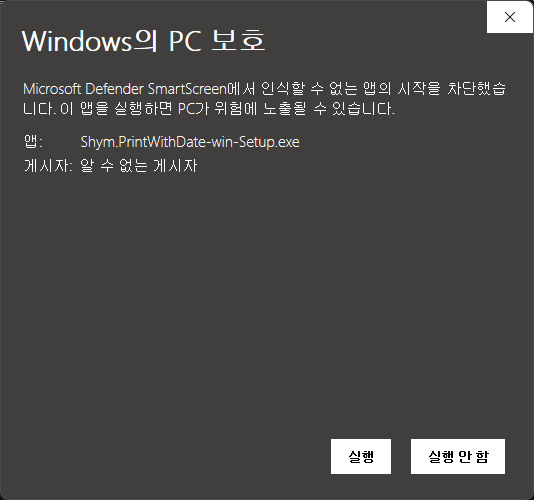
2. Click Run anyway, which appears at the bottom.
If your antivirus blocks it, check that the file came from this page, then allow it.
Requirements
- Operating system
- Windows 10 (version 2004 or later), Windows 11
- PC
- 64-bit (x64) Windows PC. It doesn’t run on Mac, phones, or tablets.
- Other software
- None. The .NET runtime it needs is included.
- Printer
- Any printer installed in Windows. Without a printer, you can still save to files.
- Internet
- Only needed to bring in photos from Google Photos and to get updates.
PrintWithDate is free and provided as is. Results depend on your printer and paper, so print a test photo before printing a lot.
Frequently asked questions
How do I print photos with the date on them?
Install PrintWithDate, then drag photos onto the window or add them from "This PC" or "Google Photos". The date each photo was taken goes on automatically. Check the preview and click Print to print all your chosen photos at once.
Where does the date come from?
It uses the date taken stored in the photo file (EXIF). For photos from Google Photos, it uses the date recorded in Google Photos. For photos without that information, you can use the file’s modified date or type a date yourself.
What about photos my phone camera has already stamped with a date?
When you add photos, it checks for a date already stamped near the bottom (such as a Galaxy camera watermark). If it finds one, it asks whether to leave the date off that photo, so the date isn’t printed twice.
Do I have to set the printer to high quality every time I print?
No. In your print settings, choose the paper type, borderless option, and quality once with "Open printer settings". They’re saved and used the same way for every print. You can also save several, such as one for 4×6 photo paper and one for frames, and pick the one you need.
Will photos I’ve already printed get printed again?
Printed photos are moved to "Printed earlier" below the photo list and left out of the next print. To print one again, right-click it and choose "Mark as not printed".
A "Windows protected your PC" window appears when I install. Is it safe?
Yes. It appears because this is a new app made by an individual, and Windows and antivirus programs don’t know it well yet. Click "More info", then "Run anyway" to continue installing. If your antivirus blocks it, check that the file came from this page, then allow it.
Is it really free?
Yes. It’s free, with no feature limits or watermarks.
Can I use it without a printer?
Yes. Save the dated photos as JPG files and take them to a photo shop or an online printing service.
Does it work on Mac or phones?
It only runs on 64-bit PCs with Windows 10 (version 2004 or later) or Windows 11. If you back up your phone photos to Google Photos, you can bring them straight into the app on your PC and print them.
I don’t use Google Photos. How do I get photos from my phone?
Move the photos to your PC, then add them from "This PC". You can connect your phone with a USB cable and copy them, or use Windows Phone Link.
Does it change my original photos?
No. The date is only drawn on when printing or saving to a file. Your original photo files are never changed.
There’s a "PrintWithDate 사용 알림" task in Task Scheduler. What is it?
It shows a reminder once if you haven’t used PrintWithDate for a while. The reminder appears at 6 PM, 15 days after you last printed or added photos. If your PC was off at that time, it appears the next time you turn it on. To stop these reminders, turn off PrintWithDate in Windows Settings > System > Notifications. The task is removed when you uninstall the app.